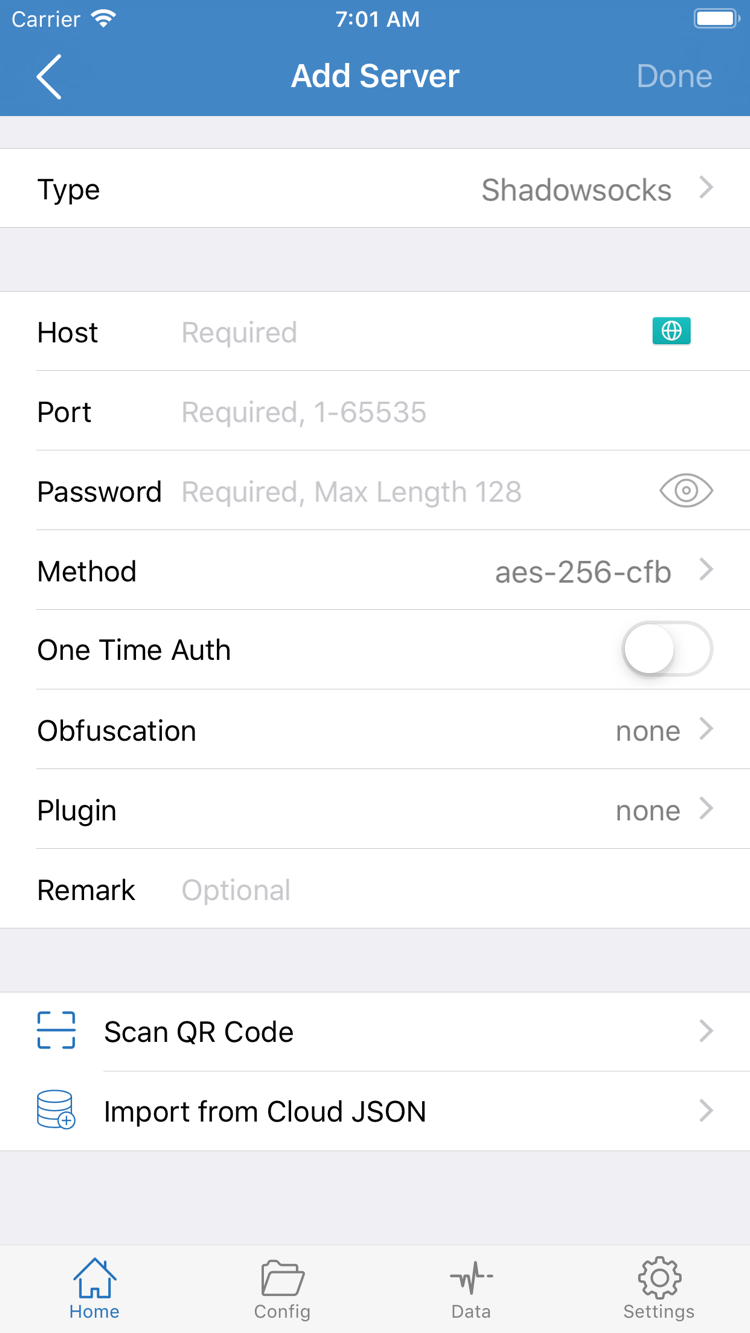
Add Server: Add a server or import a subscription
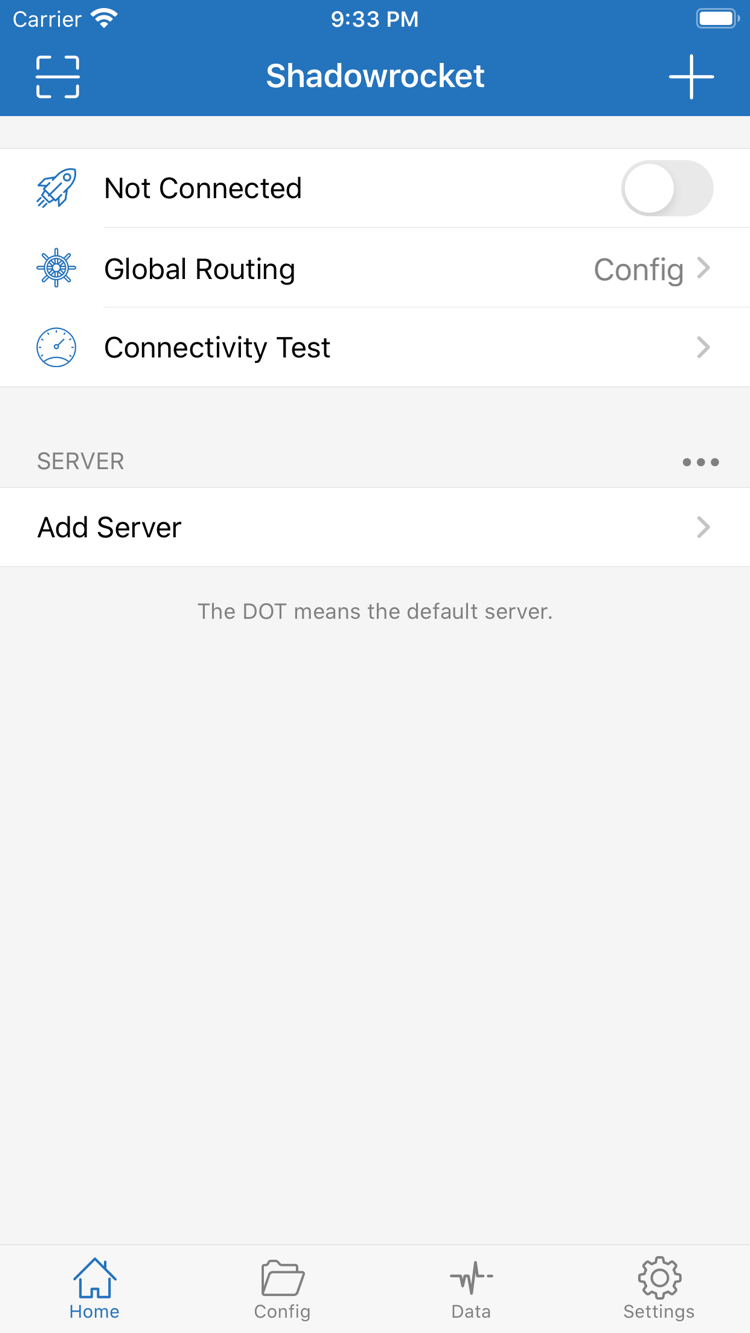
After opening Shadowrocket, stay on Home and leave the switch at the top off for now. The SERVER section below is where you view and select servers. There may be no entries to choose from right after installation; import your existing details first so the connection switch has a server to use. Adding a server and adding a configuration file are different: a server entry stores connection and authentication details, while a configuration file mainly defines how requests are handled.
Manual setup: Choose the Type first
On Home, tap Add Server, then open Type and choose the protocol that matches your existing details. Required fields vary by protocol, so don’t guess based on the server name alone. For Shadowsocks, for example, check Host, Port, Password, and Method. For other protocols, fill in the fields shown for that type. The address field usually takes a hostname or IP address, not a full web URL.
When copying details, check for leading or trailing spaces, port digits, password capitalization, and an exact match for the encryption method. For TLS, transport, or other additional parameters, follow the original server details rather than changing settings at random. When finished, use the save action on the page, return to Home, and confirm the new entry appears in the list. If you’re still on the edit page, check for missing required fields.
Importing a subscription: Server subscriptions vs. configuration files
If you have a server subscription link, go to Add Server from Home, set Type to Subscribe, paste the complete link from your provider into the URL field, then save and wait for the content to load. Once imported, the corresponding group and server entries should appear on Home. Seeing a subscription name without any entries in its group doesn’t mean the import is complete; check the returned content and any error messages.
The Config page is for managing configuration files. If you have a configuration file URL, use the appropriate remote configuration option on that page. If you see Subscribe, first check what type of content the current page handles. Don’t use a server-list subscription link as a rule file, or import a rules-only file as server details. If you’re unsure, check the content type in the original instructions before proceeding.
If you have a QR code, use Scan QR Code to read it and check the parsed protocol and fields before saving. Import from Cloud JSON is for the relevant content format; it doesn’t mean every subscription can be imported this way. Subscription links may contain access credentials, so don’t include the full link in public screenshots or troubleshooting notes. For more on format differences, see the glossary.
Before continuing: Return to Home and make sure an actual server entry is visible and isn’t blank. Next, choose how requests should use these entries rather than repeatedly tapping the connection switch.
Global Routing: Choose Config, Proxy, or Direct
After importing, return to Home and tap Global Routing. This controls the overall handling of requests; it doesn’t create a server or fill in missing connection details. The three modes are Config / Proxy / Direct. Understand the current selection before checking the results to avoid assuming that an active switch means traffic is being handled as expected.
- Config: Uses the rules in the selected configuration file to determine how requests are handled. Requests may use
PROXY,DIRECT, orREJECT, so they won’t all take the same path. - Proxy: Routes traffic through a proxy and is useful for comparison with Config during troubleshooting. It won’t fix incorrect server settings or select a server for you.
- Direct: Handles requests as direct connections. Even if the connection switch is on, this mode doesn’t mean requests are using a proxy server.
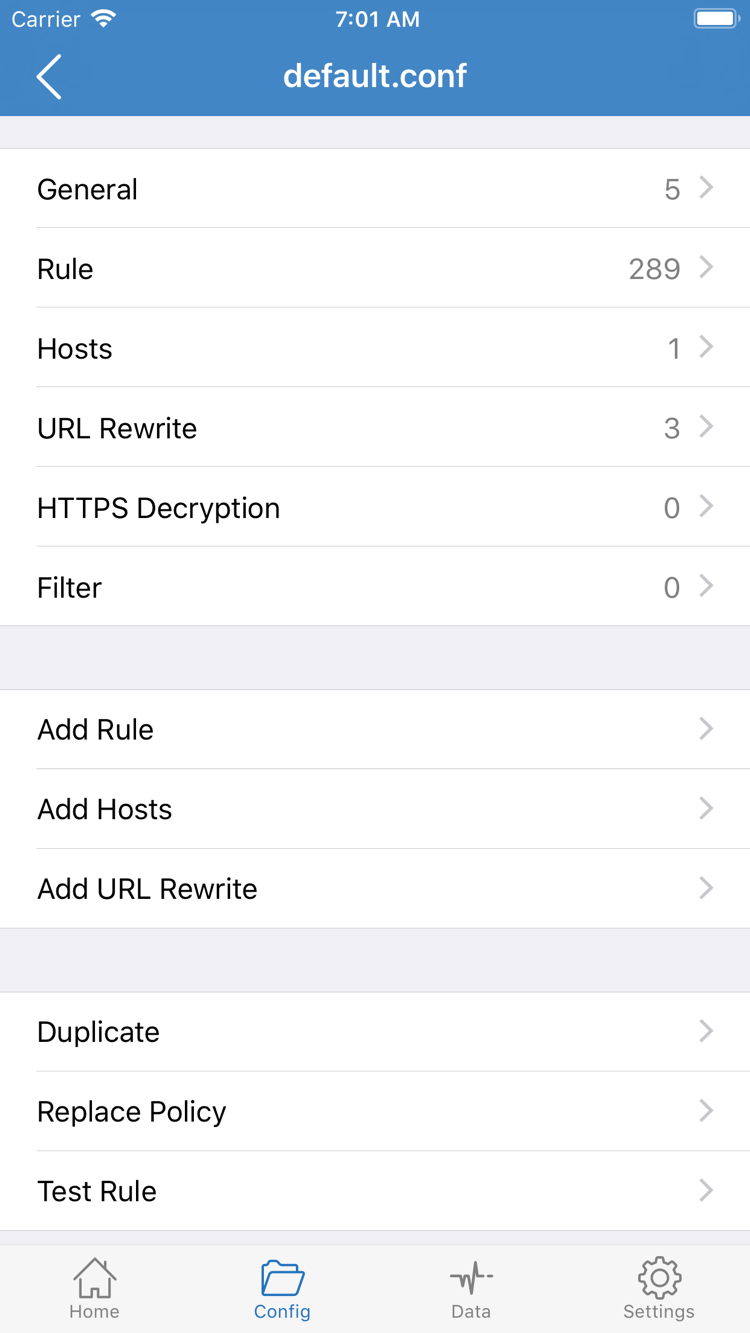
For rule-based routing, choose Config, then open the Config tab at the bottom and confirm that the configuration file you intend to use is selected. A file being present doesn’t mean it’s selected; editing a different file doesn’t mean the current connection will use those changes. Confirm the selected file first, then review sections such as General and Rule.
In the official screenshots, Hosts, URL Rewrite, and HTTPS Decryption are other configuration sections. For your first connection, focus on what the current rules do; you don’t need to enable each section. Add Rule adds rules, but avoid adding many before confirming that the server works. Otherwise, connection issues and rule-matching issues can be hard to tell apart.
Rules are usually checked in order, and an earlier match may determine the outcome. For example, DOMAIN-SUFFIX matches domain suffixes, while FINAL handles requests that haven’t matched earlier rules. The snippet below illustrates syntax only; it isn’t a complete connection setup you can apply as-is. The domain is an example, and the policy must be understood in the context of your configuration.
[Rule]
DOMAIN-SUFFIX,example.com,PROXY
FINAL,DIRECT
To check whether an existing server works, you can temporarily choose Proxy and test the connection, then switch back to Config and compare the same request. Change only this setting, keeping the same server and test target. For more on rule types and policies, see Features and Settings; for keyword definitions, see the glossary.
Before continuing: Note the current Global Routing mode. If you’re using Config, confirm that the intended configuration file is selected.
Home: Select a server and turn on the switch
Return to Home, select the server you want to use in the SERVER group, and confirm the selection marker is on the right entry. If your subscription imported multiple entries, stick with one for the initial test rather than switching servers mid-test. A name is only for identification; a successful connection depends on the actual address, protocol settings, credentials, and current network conditions.
After confirming Global Routing, turn on the connection switch at the top of the page. When establishing a system connection for the first time, your device may ask for permission to add a VPN configuration. Read the system prompt and confirm that it was triggered by Shadowrocket, which you just opened. Tap Allow as prompted and complete any required authentication. This step only authorizes adding a system network configuration; check server credentials in the corresponding server entry within the app.
If you previously denied permission, return to the app and try connecting again to see if the system prompt reappears. If your device is managed by an organization or has usage restrictions, check those restrictions first rather than repeatedly changing in-app settings to solve a system permission issue. The system prompt may look different on iPhone and iPad; check the app name and the requested action shown on your device.
After granting permission, wait for the status at the top to change from the screenshot’s Not Connected to a connected state before testing. An active switch means the local connection has started; it doesn’t guarantee the selected server is reachable or that every domain uses a proxy policy. If the switch turns off immediately, note any message shown. If it stays on but a page won’t load, check the request result in the next step. Don’t confuse these two cases.
During your first test, keep the network environment consistent. Switching between Wi-Fi and mobile data changes connectivity conditions. If you need to compare them, note the result on the original network, then switch and repeat the same steps. This helps isolate network changes from server or rule changes made at the same time.
Before continuing: Confirm that the server is selected, system permission is granted, and the switch stays on. Now test the connection; don’t treat the switch alone as a final result.
Connectivity Test: Verify the connection and rules
Once connected, tap Connectivity Test on Home and wait for it to finish. Check whether the test returns a result, then check which test method is being used. It indicates reachability under a specific method; it doesn’t confirm that every site or protocol is working. Interpret a failed test in light of the method used rather than assuming the entire subscription is invalid.
Next, open a page you need to use and can confirm has loaded successfully. A cached page may still appear when the connection is having problems, so refresh it or open a page on that site that hasn’t been loaded before. Test one target first and confirm that it returns new content before checking other requests. Avoid opening many apps at once, or it may be hard to match logged requests to what you did.
Check these three layers separately
- System connection: Does the switch at the top of Home stay on, and has the system accepted the VPN configuration? If this layer fails, address permission or startup issues first.
- Server test: Does Connectivity Test return a result, and is the test method suitable for current conditions? A successful result only confirms a response under those test conditions.
- Individual request: Does the target page load, and does the policy shown in the request log match Global Routing and the applicable rules? This is the layer that reflects the actual outcome.
To check rules, review the request log in the app, find the entry for the domain you just visited, and check its match and policy details. With Config, a DIRECT match may be exactly what the configuration calls for. If the request matches REJECT, first check whether a rule is blocking it rather than changing the server password. A page loading successfully doesn’t necessarily mean it used a proxy; consider the result alongside the actual policy.
If the same server reaches a target in Proxy but fails after switching back to Config, check the domain’s matching rule, policy reference, and selected configuration first. If both modes fail, check the server settings, network reachability, and name resolution. After the comparison, restore the mode you intend to use so temporary troubleshooting settings aren’t left in place.
Success criteria: The switch stays on, the target returns content, and the actual policy matches your expectations. Once all three are confirmed, consider adding rules or adjusting automatic connections.
Settings: Check common failure points
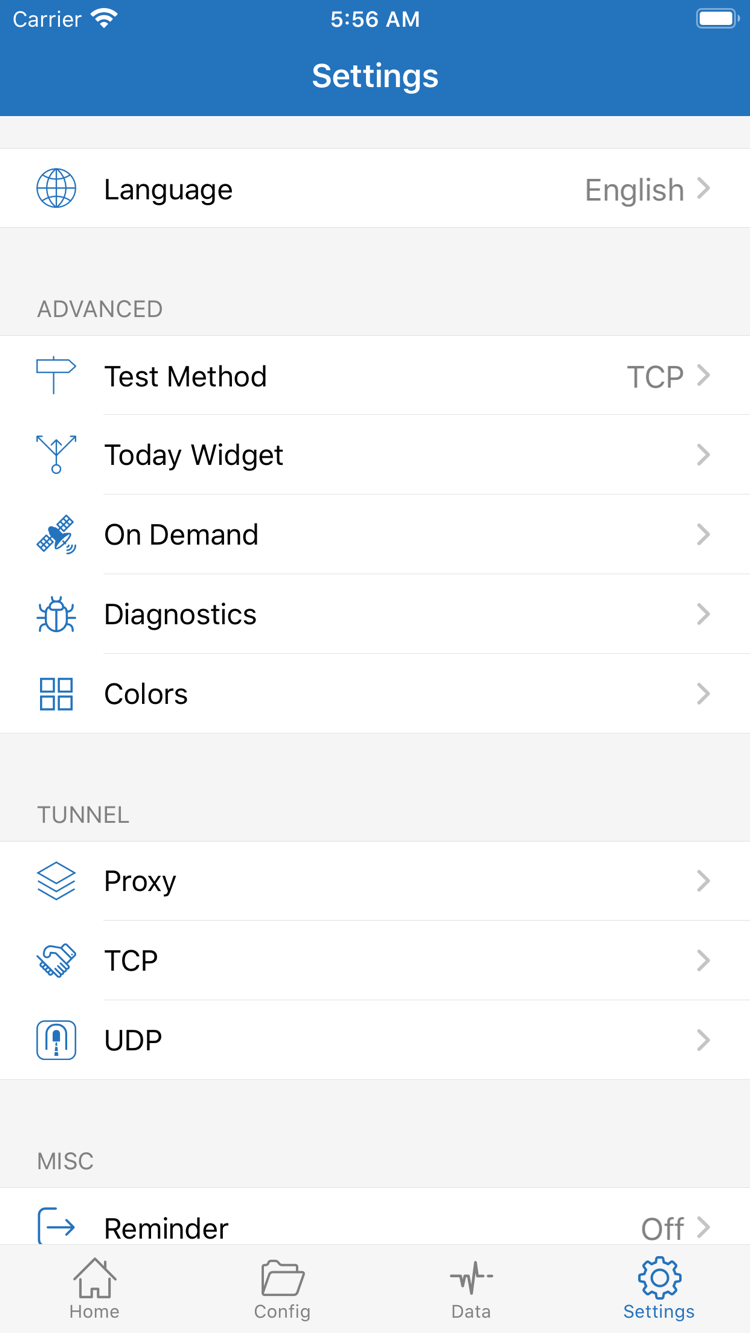
When something goes wrong, identify the last step that worked: Did the link fail to import, did the switch fail to stay on, did the test return no result, or did only the target page fail? Then open Settings and check the options relevant to that issue. In the screenshot, Test Method, On Demand, and Diagnostics relate to testing, automatic connection conditions, and diagnostics, respectively. Don’t change them all at once.
Subscription not imported or group is empty
First, make sure you pasted the complete subscription link, not a service management page URL. Check for extra spaces, line breaks, or missing query parameters, and confirm the original link is still valid. Get subscriptions from your provider; if the returned content or access permissions are an issue, check the provider’s original instructions. Before importing again, review existing groups so you don’t mistake old entries for new ones. Don’t share links that contain credentials.
Connection switch turns off immediately
Return to Home and confirm that you selected an actual server, then check that system permission was granted. Note any visible error message and check whether another connection is using the system VPN configuration. Don’t delete every configuration or reset the device’s network settings right away. First, try running this connection on its own so you can tell whether the issue is related to permissions, configuration loading, or a system connection conflict.
Test fails or page won’t load
In Settings, check Test Method and note the current method, then run the test again under the same conditions. If only one server entry fails, focus on its protocol and fields. If multiple entries fail, also consider the current network and subscription status. If the test succeeds but a page doesn’t load, check name resolution, Global Routing, and rule matches instead of simply rerunning the test.
If needed, use Diagnostics to review available diagnostic information and note the stage where the failure occurs. Before sharing logs, hide subscription URLs, passwords, identifiers, and other sensitive fields. The error message, current routing mode, test method, and network type are usually more useful for troubleshooting than sharing the entire configuration. For a more systematic process covering DNS, timeouts, and issues after updates, see Troubleshooting.
Check On Demand only after manual connection works
On Demand triggers connections based on conditions; it won’t fix incorrect server details. For your first setup, verify a manual connection before configuring automatic connection conditions. If the connection starts again automatically or reconnects after disconnecting, review the conditions configured here. After making a change, repeat the expected scenario and confirm the behavior matches the conditions. Don’t judge the result from a brief change in the switch alone.
Keep settings reproducible: Change one setting at a time and record the results before and after. Once manual connection works and the rules behave as expected, your initial setup is complete. Explore configuration files and diagnostic details later as needed.